 VOP
VOP Bulk Account Verifications using Pain.001
Overview
The Bulk Verification of Payee (VOP) feature allows users to validate multiple payment instructions before they are submitted to the payment processing system. After reviewing the verification results, users can select the transactions they wish to proceed with. Based on the selection, the system generates payment files for download.
User Flow
- Upload a valid Pain.001 file (Supported formats: Pain.001.001.003 & Pain.001.001.009)
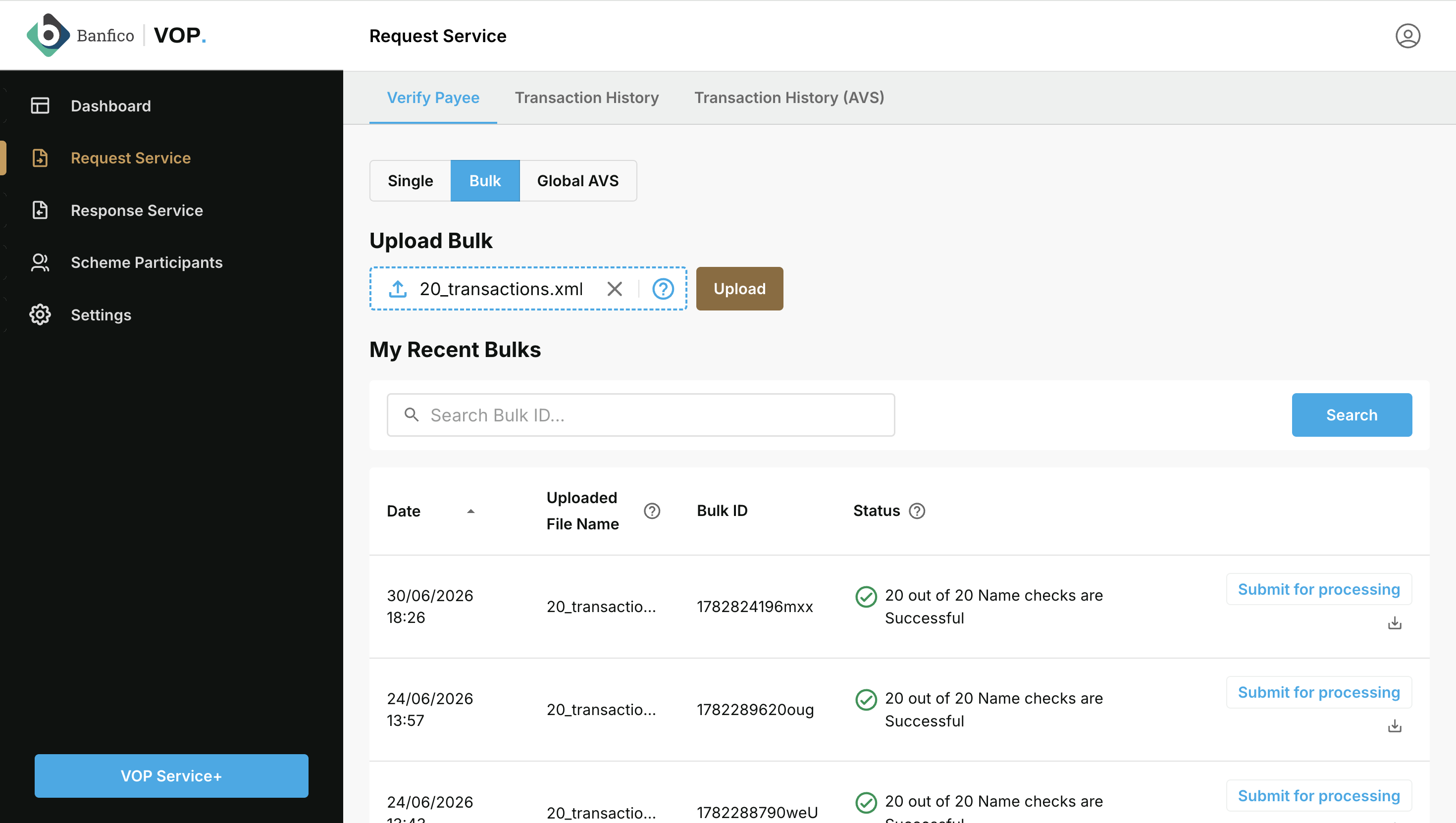
- Perform Bulk Verification of Payee checks.
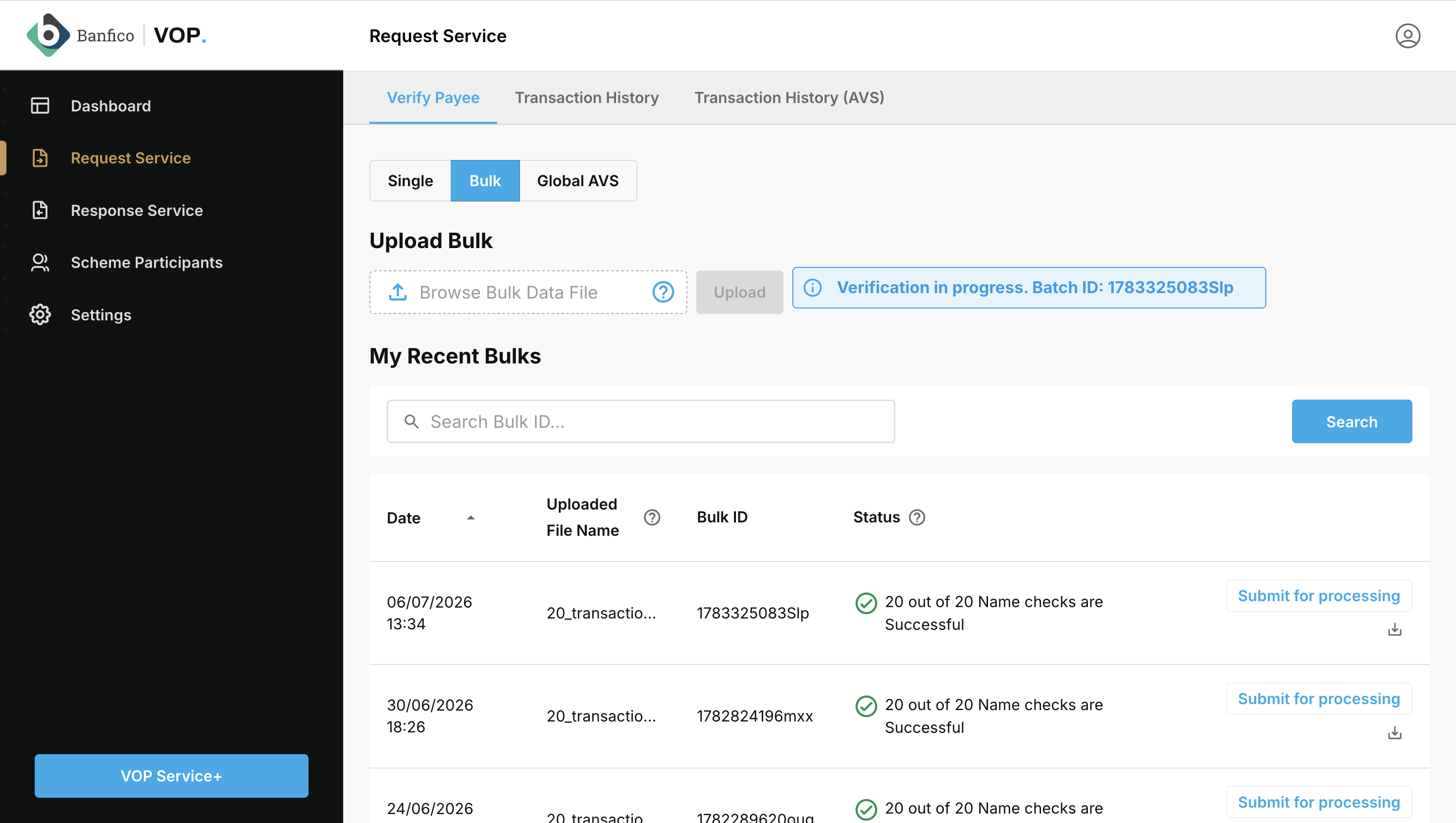
- Review the verification results.
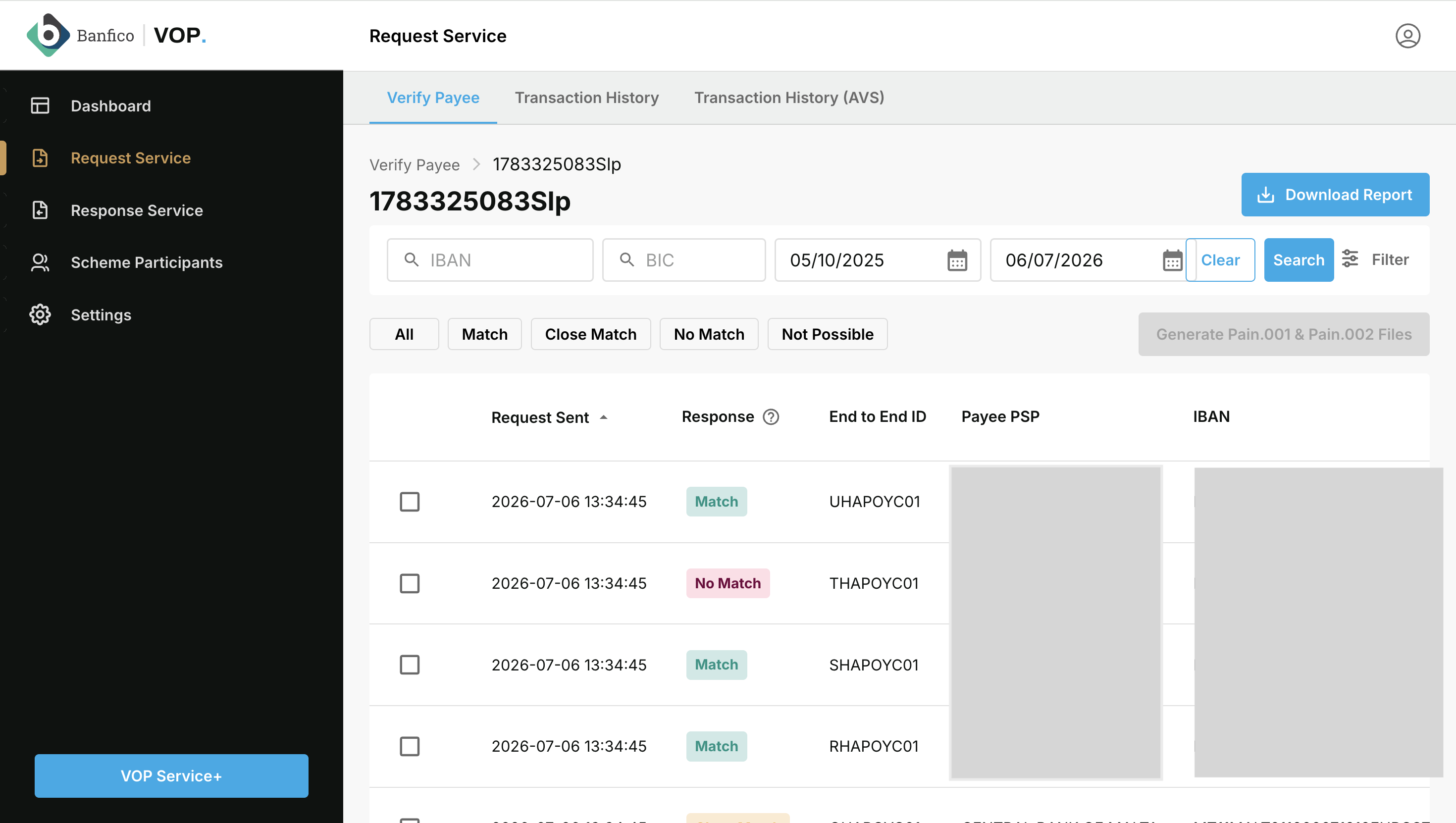
- Select the transactions to proceed with payment.
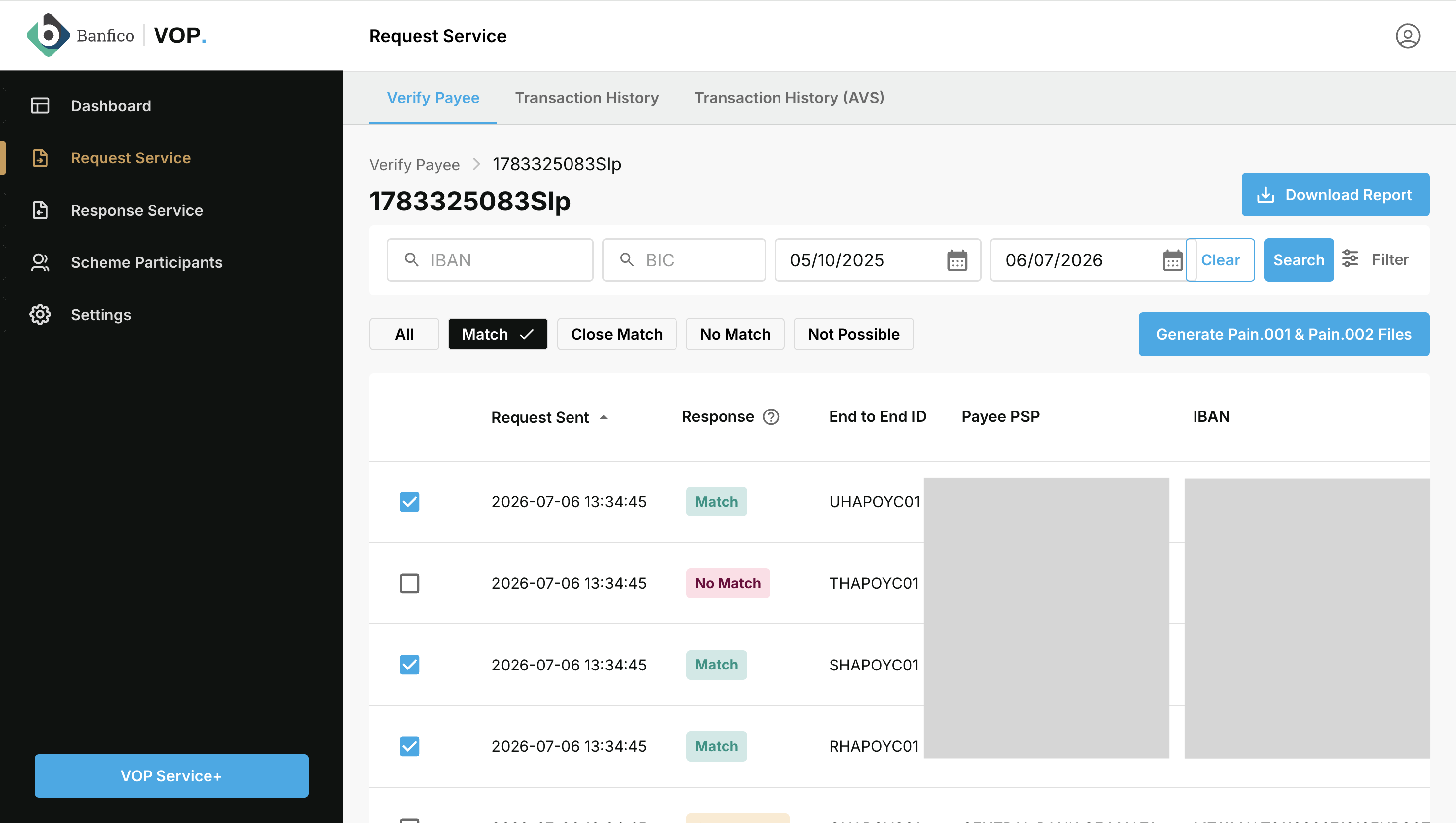
- Click Generate Pain.001 and Pain.002 Files, and confirm
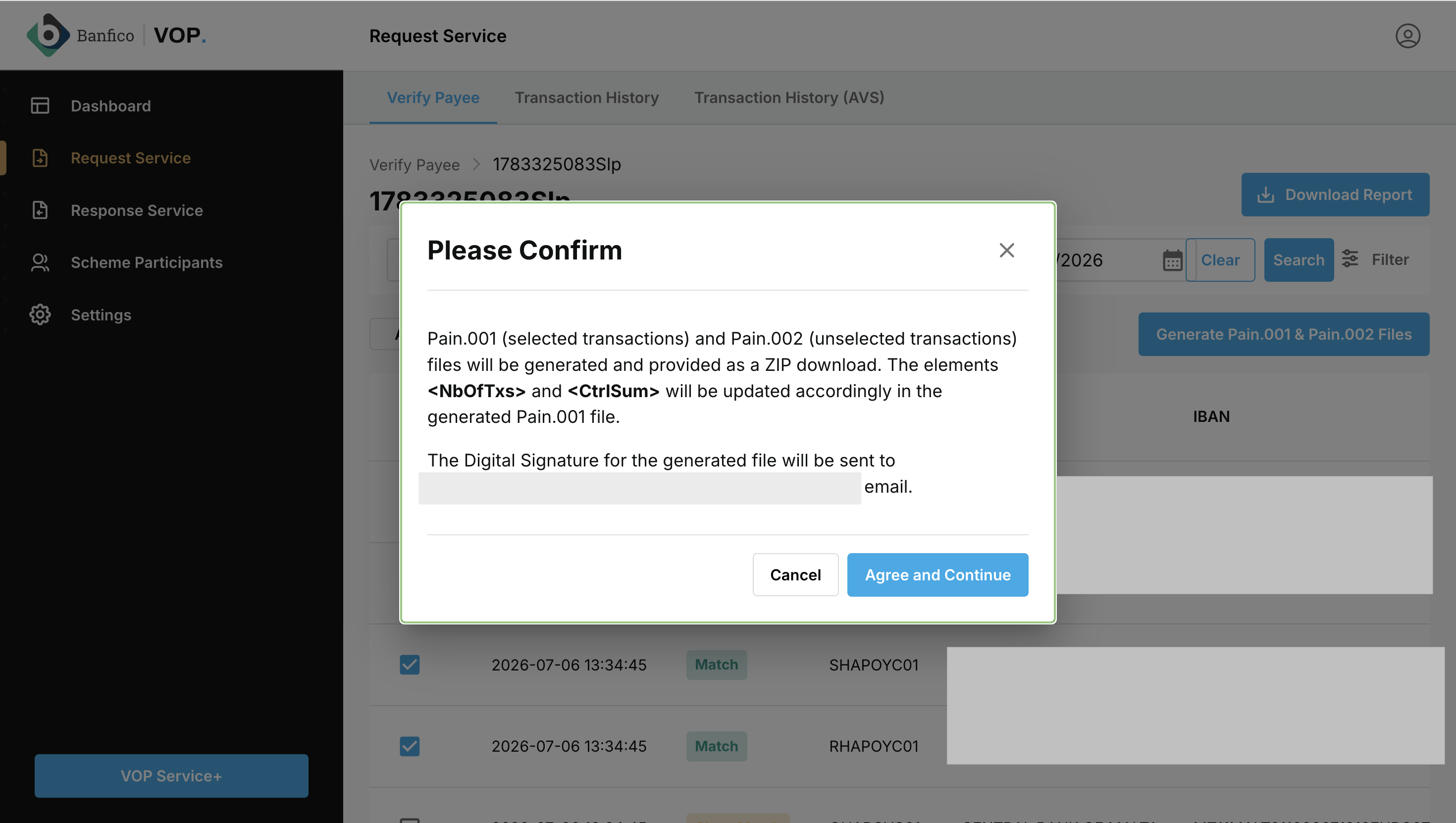
- Download the generated ZIP package.
- Receive a separate email containing the digital signature for the generated Pain.001 file.
The downloaded ZIP file contains:
| File | Description. |
|---|---|
| Pain.001 | Contains only the transactions selected for payment processing. |
| Pain.002 | Contains the transactions that were not selected for payment processing. |
Pain.001 File
The generated Pain.001 file:
- Includes only the selected transactions.
- Updates the transaction count (NbOfTxs).
- Updates the control sum (CtrlSum).
- Preserves the original payment structure and payment blocks.
- Is digitally signed.
Pain.002 File
The generated Pain.002 file contains all transactions that were not selected during the verification process (Supported format: Pain.002.001.003)
Digital Signature
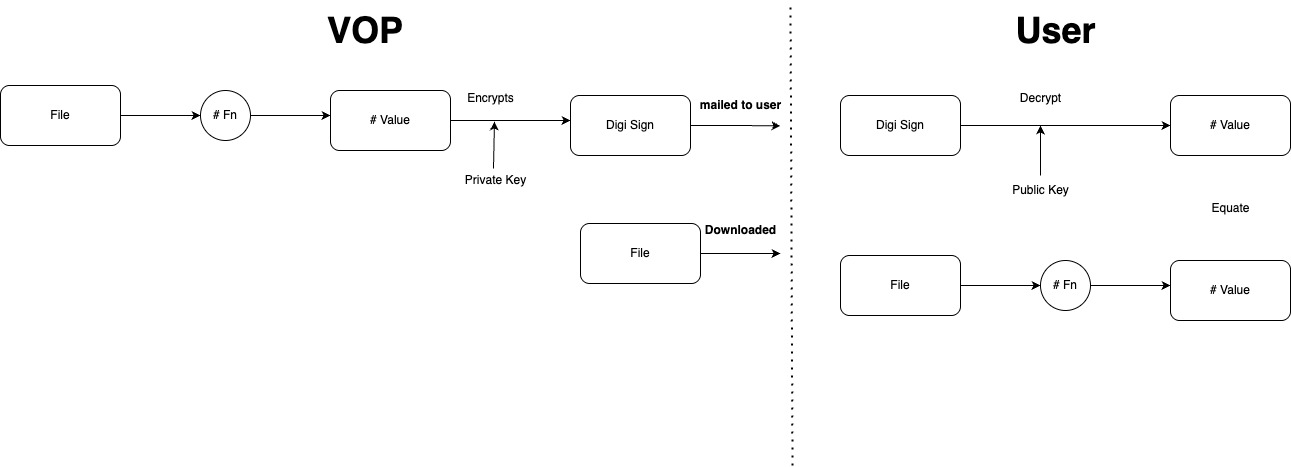
A digital signature is generated for the Pain.001 file. The signature is:
- Sent in a separate email to the configured email recipient.
- Used to verify that the Pain.001 file has not been altered after generation.
Steps to Verify the File
- Download the generated ZIP file from the Portal and extract the Pain.001 file.
- Save the Digital Signature received via email.
- Generate the hash value of the downloaded Pain.001 file using the SHA-256 hashing algorithm.
- Verify the Digital Signature using the provided Public Key. This will produce the original hash value generated by the Portal.
- Compare the two hash values:
- If both hash values are identical, the file has not been modified and its integrity is confirmed.
- If the hash values do not match, the file may have been altered and should not be used.